
AI agents are good at building reports. Give one a data file and a goal, and a few minutes later you have a table, a chart, and a PDF. Most tools make that possible in the simplest way: the agent gets the data. Revenue, margins, costs, customer lists go into the prompt, and every value ends up with the model provider.
For source code, many companies have made their peace with that. For company figures, most have not, and for good reasons: contracts, data protection, insider rules, or simply the feeling that next quarter’s numbers should not leave the house before the board has seen them.
This post shows a way out that doesn’t require a special model or a new contract. The agent writes the report. It never sees the real numbers. We built a small demo report, ran it with the Bino CLI and with the agent tools in bino mcp, and you can download it and run it yourself.
Code is not data
The idea rests on a simple observation: to design a report, you need to know the structure of the data, not the values. Which columns exist, what type they are, what range they fall in, which special cases occur. Whether North sold 11.5 or 17.2 million in September does not change where the table goes or how the chart is scaled.
In most reporting tools, the design and data are mixed from the start. The numbers are on a slide. A dashboard is bound to a live connection. An agent that builds one has to touch the real data, because there is nothing else to touch.
In Bino, a report is plain text: YAML for pages, tables and charts, SQL for the data. The data and the design meet in exactly one place, the build. Before that, the report is only a blueprint, so you can hand the blueprint to an agent and keep the data for yourself.
The pattern in three parts
1. A synthetic dataset. Next to the report, you keep a small file with made-up values. The columns are the same, the types are the same, the magnitudes are similar, and the special cases are the same as in the real data. The agent works with this file.
2. Two sources with the same name. The report reads a source called sales. There are two definitions of it. A constraint on each one decides which one is active:
# Synthetic: the default. This is what you and your agent work with.
apiVersion: bino.bi/v1alpha1
kind: DataSource
metadata:
  name: sales
  constraints: [labels.data==synthetic]
spec:
  type: csv
  path: ../data/synthetic/sales.csv
---
# Real: only used when REPORT_DATA=real. Only CI has the token.
apiVersion: bino.bi/v1alpha1
kind: DataSource
metadata:
  name: sales
  constraints: [labels.data==real]
spec:
  type: csv
  path: ${SALES_URL:https://data.example.com/sales.csv}
---
apiVersion: bino.bi/v1alpha1
kind: ConnectionSecret
metadata:
  name: salesApi
spec:
  type: http
  http:
    bearerTokenFromEnv: SALES_API_TOKEN
The SQL and the layout only ever say sales. They do not know which source they get, and they do not need to.
3. A switch that only CI sets. The report itself carries a label, and the label comes from an environment variable with a safe default:
apiVersion: bino.bi/v1alpha1
kind: ReportArtefact
metadata:
  name: monthly
  labels:
    data: ${REPORT_DATA:synthetic}
Without the variable, the label is synthetic and Bino picks the synthetic source. That is true for bino build and bino preview on your laptop, and for every build the agent starts through bino mcp. Only the CI job sets REPORT_DATA=real, and only the CI job has the token for the data API.
We also put the label into the page footer (footerText: "Data: ${REPORT_DATA:synthetic}"), so every PDF says which data it was built from. It’s a small thing, but it ends every “wait, which numbers is this?” discussion.
Same report, two datasets
Here is the demo report, which was built twice from the same files. The first one is what the agent sees while it works. The second one is what CI produces.
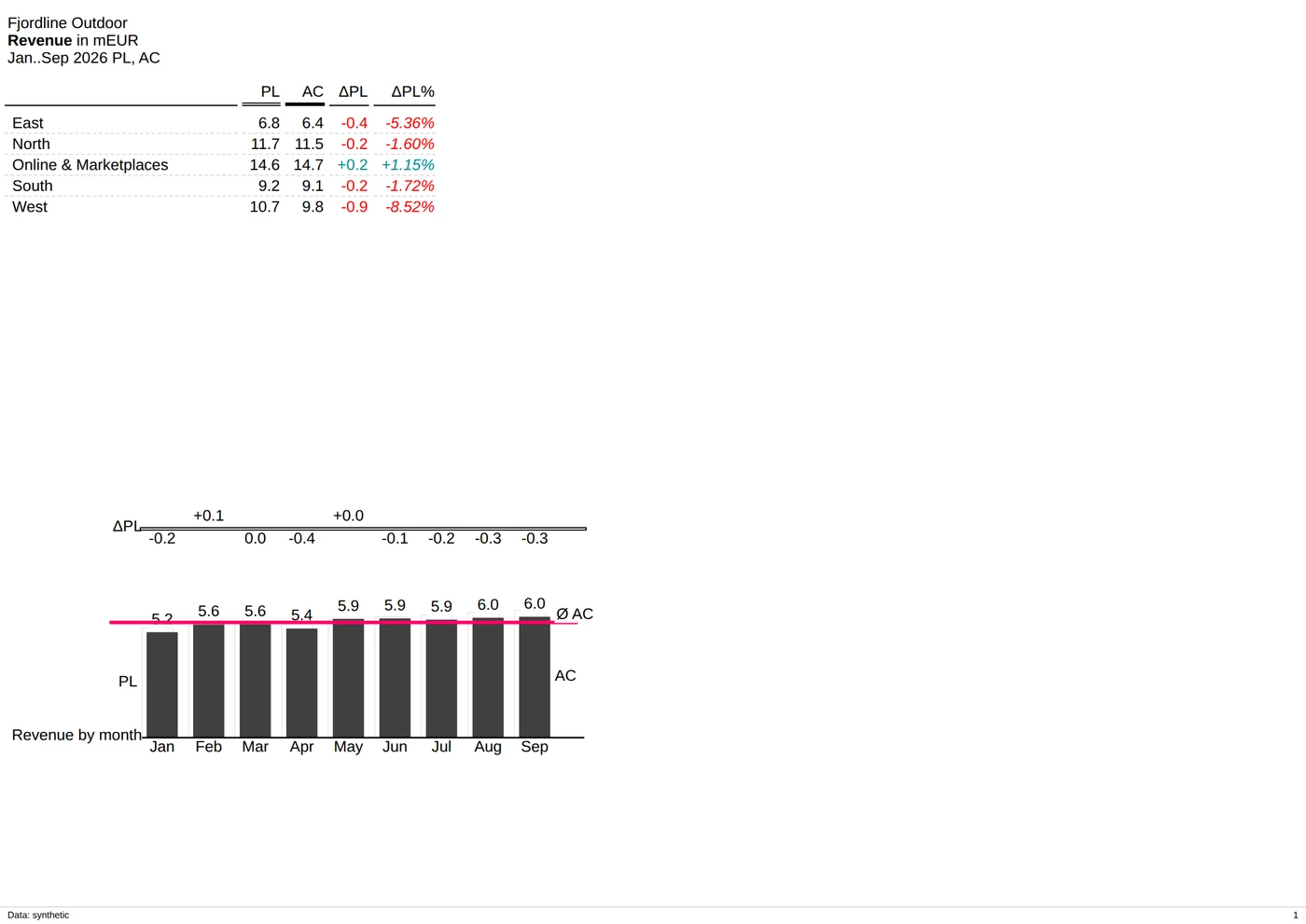
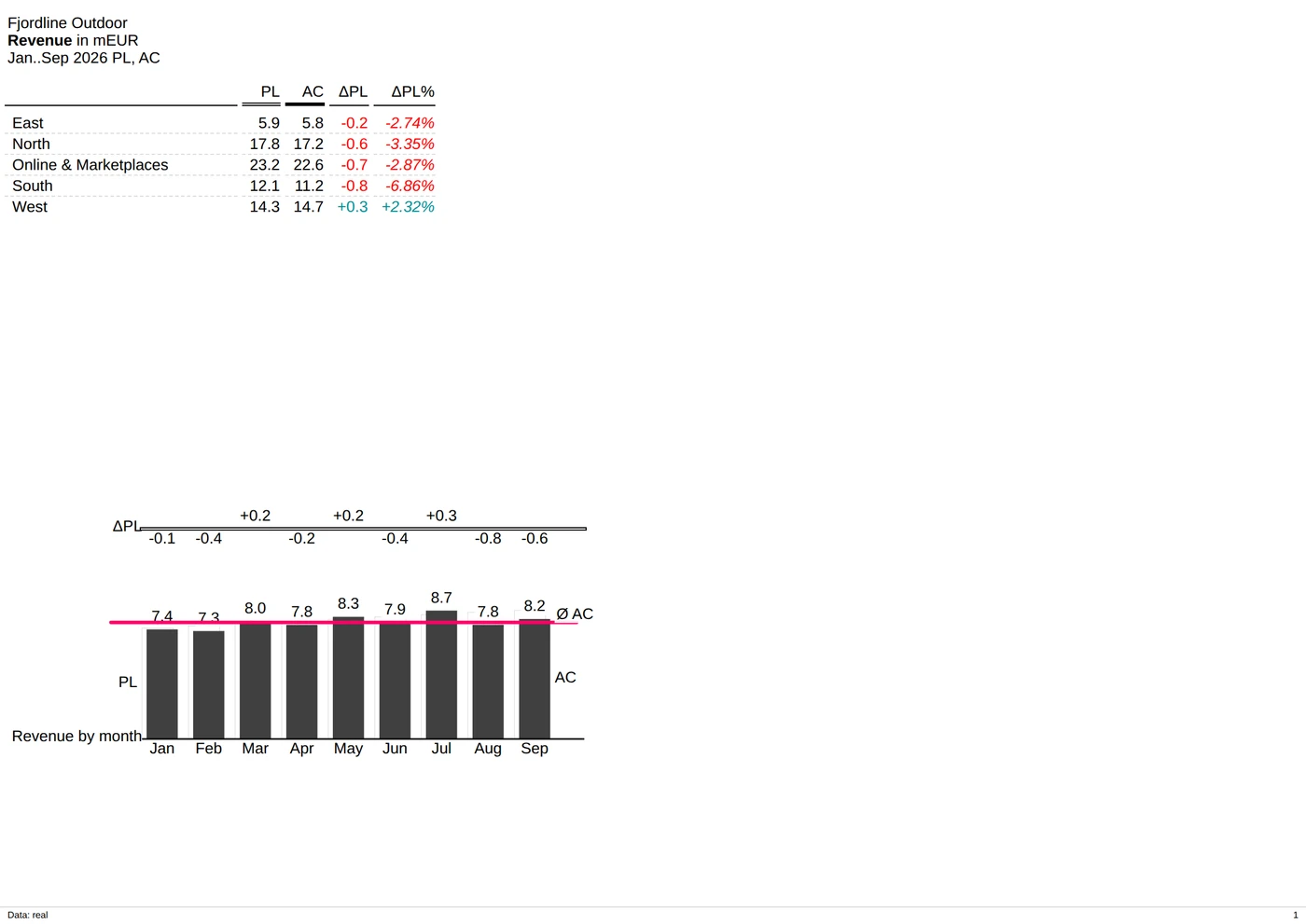
The layout, scaling, and notation are all the same. The figures change, and the footer tells you which ones you’re looking at.
The agent’s view
The agent works with Bino through bino mcp, an MCP server that gives it tools to read the schema, inspect data, write manifests, build and check the result. We drove that server the way an agent would, with no REPORT_DATA set, and asked for rows from sales:
{
  "name": "$sales",
  "columns": ["date", "region", "region_index", "actual", "plan"],
  "rows": [
    { "date": "2026-01-01T00:00:00Z", "region": "North", "region_index": 1,
      "actual": 1037208, "plan": 1200000 }
  ]
}
These are the synthetic rows. The build tool produced the synthetic PDF, and our stand-in data API logged no request from the agent at all. The agent can still do its job: it sees the columns, sees realistic values, builds the PDF and checks the layout with get_layout_state. It just never sees a real number.
To help the agent behave, the demo includes an AGENTS.md (and a copy as CLAUDE.md) with four rules: work against data/synthetic/, never set REPORT_DATA, SALES_URL or SALES_API_TOKEN, never try to reach the real source, and add missing edge cases to the synthetic file instead.
The real build: in CI, without AI
The real report is built by a standard CI job. There is no model, agent, or prompt. It checks out the repository, installs Bino, and builds with the real data:
jobs:
  build:
    runs-on: ubuntu-latest
    env:
      CI: "1"
      REPORT_DATA: real
      SALES_URL: ${{ vars.SALES_URL }}
      SALES_API_TOKEN: ${{ secrets.SALES_API_TOKEN }}
    steps:
      - uses: actions/checkout@v4
      - name: Install bino
        run: |
          /bin/bash -c "$(curl -fsSL https://github.com/bino-bi/bino-cli-releases/releases/latest/download/install.sh)"
          bino setup
      - name: Build with real data
        run: bino build --data-validation=fail --layout-state
--data-validation=fail stops the build if the real data does not fit what the report expects. --layout-state reports empty charts, overflow and shrunk fonts as warnings, so you see when the real numbers break a layout the synthetic ones did not. We tested both directions: with the right token, the build reads the real data and produces the real PDF. With a wrong token, the data API answers 401 and the build fails. No token, no report.
Synthetic data is the hard part
While we were building the demo, we learned one thing above all: good synthetic data is hard to make. A file with the right columns is the easy part. The hard part is everything that makes the layout break later: the magnitudes, the seasons, a plan that moves with the actuals, the one region that is ten times bigger than the rest, months with no sales, names that are too long for a column.
If you write the file by hand, it starts to drift the day you finish it. The real data gets a new region or a new product, and nobody updates the synthetic file. If you create it from the real data, you have a new risk: a generator that copies real values, keeps a rare outlier, or shows a group of three customers can leak exactly what you wanted to protect.
We want to solve this problem next, in Sluice. Sluice sits between AI agents and your databases and checks every query against your rules: row filters, column masks, approvals, and an audit log that cannot be changed without being noticed. It speaks SQL over REST and MCP.
We are now adding synthetic data sources to Sluice. Sluice reads the real source once, builds a profile of every column, and writes generated rows that keep the distributions, the relations between tables, and the correlations between columns. Small groups are dropped, extremes are moved, and noise can be added, so the result does not show single records. The agent then queries the synthetic copy like any other database. This is still in development and not in a release yet.
If you want to see where this goes, follow us on GitHub. Or send us a message: we are looking for teams who want to try it with their own data, and we would like to hear how you keep figures away from AI models today.
A short checklist
- Make the synthetic data honest. Use the same columns and types, similar magnitudes and the awkward cases: negative values, gaps, very long names, a new region. If the synthetic data lacks them, the layout only breaks with the real data, in CI, where the agent cannot see why.
- Accept that structure is visible. The agent knows column names and types. If the names themselves are confidential, rename them in the query layer.
- Keep real data off the agent’s machine. No real files in the repository, no credentials in the developer’s environment. The CI secret store is the only place the token lives.
- Open no way back. The final PDF, the build logs and the CI output go to people, not back into the agent’s context.
- Label every PDF. A footer with the data source costs one line and prevents a synthetic report from ever being sent out as the real thing.
Try it yourself
The demo is a complete Bino project: synthetic data, the two sources, the report, the CI workflow and the agent rules.
Download the demo project (ZIP, 6 KB)
Unpack it and run:
bino build      # dist/monthly-sales.pdf, the footer says "Data: synthetic"
bino preview    # live preview while you or your agent work on the layout
To connect an agent, add the MCP server (or install the Bino plugin for Claude Code) and ask it to change the report:
claude mcp add bino -- bino mcp --work-dir "$PWD"To see the real build, put a CSV with the same columns behind any URL that takes a bearer token, and set REPORT_DATA=real, SALES_URL and SALES_API_TOKEN. The README in the project has the details.
Two pages for the meeting
If you need to explain this to your data protection officer, your IT department, or your CFO, we put the idea on one sheet of paper. On the front side, we explain the problem and five rules. On the back side, we explain how it works in Bino.
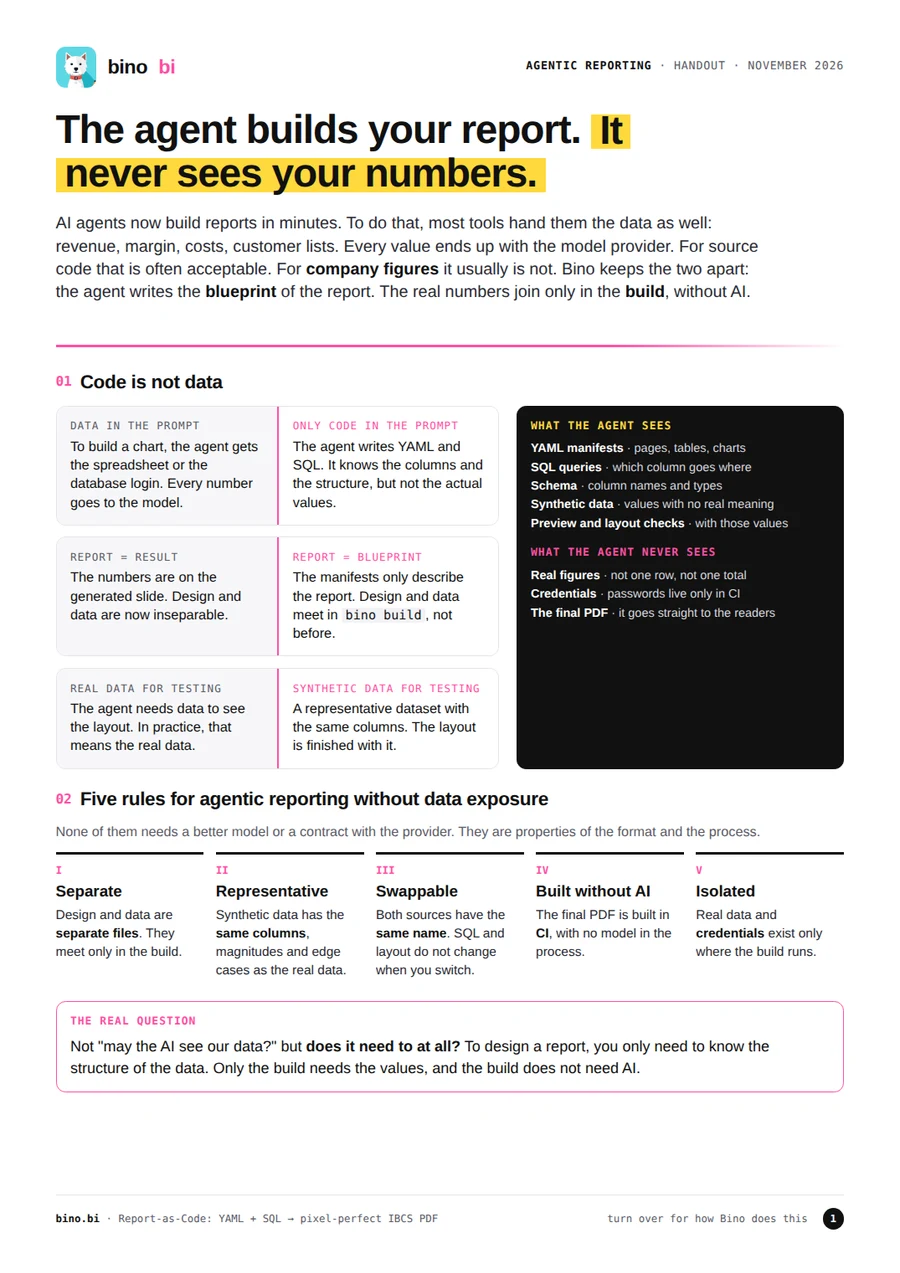
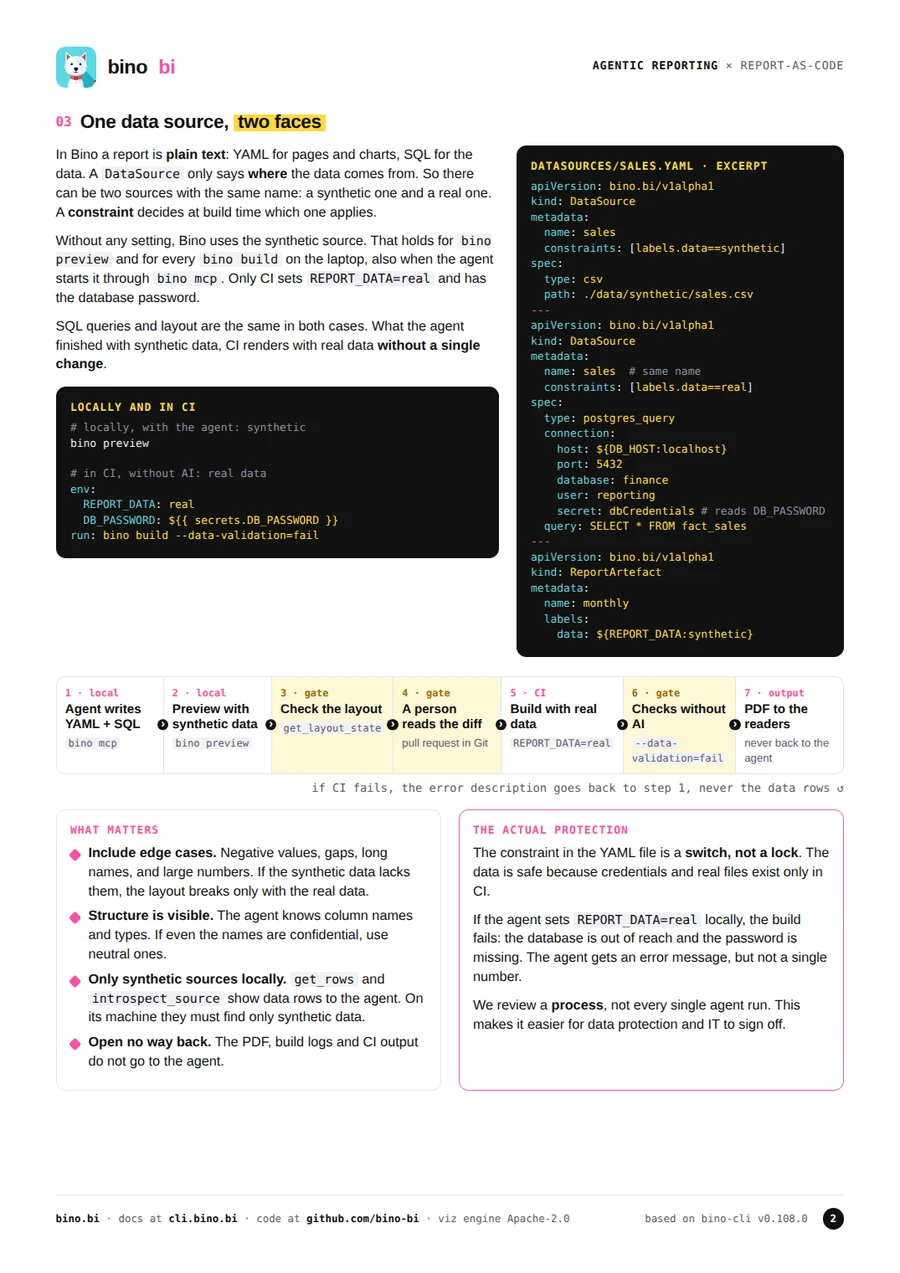
The short version: let the agent write the blueprint with data that means nothing, and let a build without AI add the numbers that mean everything.